# Creating Accessible PDFs
PDFs are a versatile and convenient way to share information. But PDFs are often not structured properly, which can create barriers for people who need to read and understand the information.
Fortunately, there are accessibility best practices that can help make PDFs more accessible for everyone.
If you need an accessible doc fast, consider using [Harvard's preferred document remediation vendor, AbleDocs](/pdf-vendors).
**In this page:**
- [Check if your PDF has tags](#check)
- [Review Reading Order and Tags](#review)
- [Ensure Image Accessibility](#images)
- [Set File Properties](#properties)
---
## PDF Accessibility Best Practices
- **Start with an accessible source document:** Whether you start in Word, Google Docs, PowerPoint, or InDesign, we recommend making your source document as accessible as possible before converting to PDF. Review our [Creating Accessible Documents guidance](/accessible-documents) to ensure you're following best practices for your document type.
- **Keep accessibility settings when you convert the document:** When converting to PDF, use settings that retain tags and accessibility formatting. Avoid "Print to PDF" settings as they will remove your tags and accessibility formatting.
- **Does it really need to be a PDF?** Consider if a PDF is really the best way to share the information. Would a different format be easier to make accessible and work better for the content? Before you create a PDF, here are a few considerations:
- If your PDF is a form: consider using a Google or Qualtrics form instead. This allows for streamlined data collection, autofill access, and better version control. A web form is also easier to create and much more accessible than a PDF.
- If your PDF is informational: consider sharing the content on a web page. It’s much easier to maintain and update web pages, and HTML is generally more accessible than PDFs. Your audience is also more likely to read a web page than to download and read a PDF, especially on mobile.
## Check if your PDF has tags
### Open the Tags Panel
Tags provide structure for content in your document.

To see if your PDF has tags, open the Tags Panel. Navigate to View > Show/Hide > Navigation Panes > Tags.
### Fix “No Tags Available”
If you don't see any tags, you may have to add them!

In the Accessibility panel select "Autotag Document." The tags will not be perfect, but they will be a good start!
## What Tags you might see
### Heading Tags
Headings provide structure and organization to your document. Generally, there should only be one Heading 1 (<H1>) for your document. Headings should be used in ascending numerical order. Don’t skip heading levels!

Tags: <H1>, <H2>, <H3>, <H4>, <H5>, <H6>
### List Tags
Lists help organize content and should be tagged with List <L> for the entire lit, List Item <LI> for each item in the list, and List Body <LBody> for the content of each list item.

Tags: <L>, <LI>, <LBody>
### Paragraph Tags
Most text in your document will be tagged with a <P> tag. This indicates regular paragraph text.

Tags: <P>
### Link Tags
All links should have [descriptive link text](/write-helpful-links) and be tagged.

Tags: <Link> and Link-OBJR
## Review the Reading Order and Tags
### Reading Order
The order of the tags displayed in the Tags Panel is called the Reading Order.
Use your up and down arrow keys to navigate through the tags. As you do, content in your PDF will be highlighted.
Make sure the order of the tags matches the order of content as you would read it visually.

### How to move a tag in the reading order
If you need to move a tag you can right click on the tag and select “Cut” from the menu (or CMD/CTRL + X). After you cut the tag you can paste it where you like in the tag tree by right clicking the tag just before the correct location and select “Paste” (or CMD/CTRL + V). The cut tag will be placed next to the tag you highlighted.
### How to modify an existing tag
- Right click on the tag you want to change
- Go down to Properties
- Object Properties box will pop up
- “In the Tag tab, select the tag from the options in the ‘Type’ menu/list.
## Ensure image accessibility
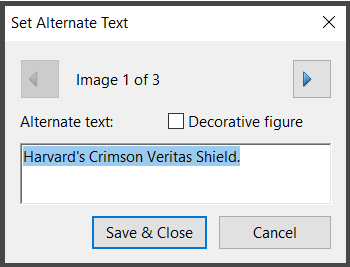
Image Tags: Images should be tagged as <figure> and they should have [useful alt text](/describe-content-images "Write helpful Alt Text to describe images").
Adding Alt Text: In Accessibility Panel, select “Set Alternate Text.” A pop up will guide you through your images in the document. You can add alt or edit alt text, or select “Decorative” for unimportant images.
Tags: <Figure>
## Check Color Contrast

Text and other elements in your PDF should have [sufficient color contrast](/use-sufficient-color-contrast) against the background. Color Contrast should be 4.5:1 or greater for standard size text. If you are using Adobe's Accessibility Checker you will always be prompted to check the color contrast. If you're not sure about the contrast, use a tool (such as the [Color Contrast Analyser](https://www.tpgi.com/color-contrast-checker/)) to check.
If you find contrast errors at this stage it is always better to go back to the source document to correct the contrast when possible. This is why it is so important to start with an accessible source document.
## Set File Properties
### Add or Verify Metadata
- Add Title and Author (File > Properties>Description Tab)
- Set Doc Title to Display (Properties> Initial View tab >Window Options > Show > Document Title)
- Add Language (Properties>Advanced Tab > Reading Options >Language)
### Be Mindful of Security Settings
If using, check the “Enable text access to screen reader devices for the visually impaired” check box in the “Permissions” section of the security settings.
This applies to security settings that restrict permissions to the document (i.e. copy and paste) not just adding a password.
## Resources
- [Tagged PDF Best Practices (PDF Association)](https://www.pdfa.org/wp-content/uploads/2019/06/TaggedPDFBestPracticeGuideSyntax.pdf)
- [Video: Testing a PDF for Accessibility (Section 508.gov)](https://www.section508.gov/training/pdfs/aed-cop-pdf02/)
## Upcoming Documents Trainings
[### Creating Accessible Slides
](/event/creating-accessible-slides-071526?occ_id=0)July 15, 2026
|
2:00PM - 3:30PM EDT
Virtual
[### Creating Accessible Documents
](/event/creating-accessible-documents-072126?occ_id=0)July 21, 2026
|
2:00PM - 3:30PM EDT
Virtual
[### Creating Accessible PDFs
](/event/creating-accessible-pdfs-072926?occ_id=0)July 29, 2026
|
10:00AM - 11:30AM EDT
Virtual
[ All instructor-led trainings arrow\_circle\_right ](/all-instructor-led-trainings)
## DAS Office Hours
Want to check your content accessibility with Digital Accessibility Services (DAS)? Stop by one of our upcoming virtual Office Hours!
[### DAS Office Hours
](/event/das-office-hours-2?occ_id=0)July 10, 2026
|
10:00AM - 11:00AM EDT
Virtual
[### DAS Office Hours
](/event/das-office-hours-3?occ_id=0)July 17, 2026
|
10:00AM - 11:00AM EDT
Virtual
[### DAS Office Hours
](/event/das-office-hours-4?occ_id=0)July 24, 2026
|
10:00AM - 11:00AM EDT
Virtual
[ All upcoming Office Hours arrow\_circle\_right ](/das-office-hours)